

How to Set Up QuickBooks Payroll a Guide for Service Businesses
Before you even think about entering your first employee’s details into QuickBooks Payroll, there’s some critical groundwork to do. Getting these first steps right is the single most important thing you can do to make sure your payroll runs smoothly, stays compliant, and doesn’t become a recurring headache.
Your QuickBooks Payroll Setup Checklist
A clean payroll system is born from careful planning, not frantic data entry. I’ve seen too many business owners rush into the software only to face errors, confusing tax notices, and unhappy employees down the road. Think of this initial stage like pouring the foundation for a house—if it’s solid, everything built on top of it will be stable.
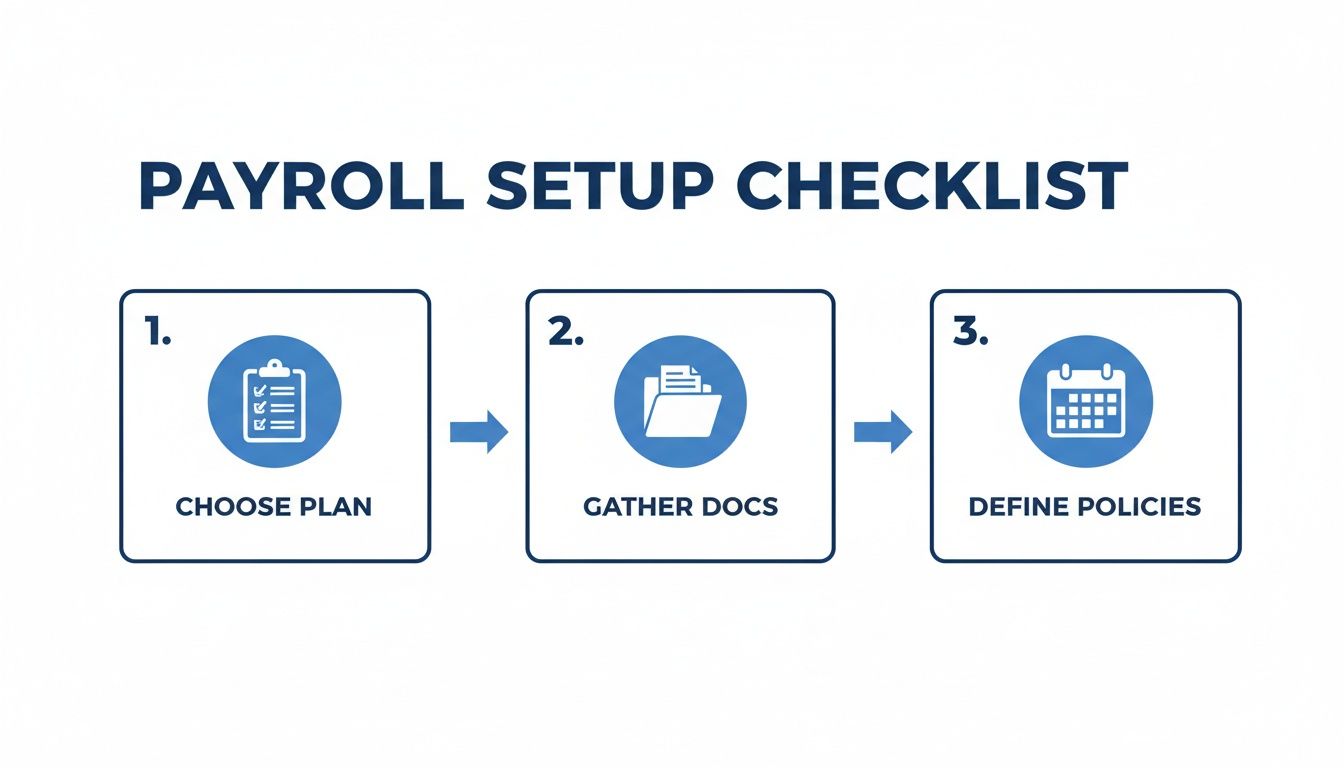
This process really breaks down into three core phases: choosing your plan, gathering your documents, and defining your company’s rules.
Comparing QuickBooks Payroll Plans
Your very first decision is picking the right QuickBooks Payroll subscription. The options might look similar at a glance, but they’re built for different stages of business growth, especially for service-based companies that need flexibility.
| Feature | Payroll Core | Payroll Premium | Payroll Elite |
|---|---|---|---|
| Paycheck & Tax Filings | Automated | Automated | Automated |
| Direct Deposit Speed | Next-Day | Same-Day | Same-Day |
| HR Support | Basic Help Articles | HR Support Center | Expert HR Advisor |
| Workers’ Comp Admin | ✅ | ✅ | ✅ |
| Tax Penalty Protection | ❌ | ❌ | ✅ (Up to $25k) |
| Expert Setup Review | ❌ | ❌ | ✅ |
For a brand-new service business with just one or two employees, Payroll Core is often enough to get the job done. But as you grow and your needs get more complex—like needing faster direct deposit or help with HR issues—Premium and Elite become much more valuable.
Gather Your Essential Documents
Once you’ve landed on a plan, it’s time to collect all the necessary paperwork. Do this before you log in. It’s like gathering all your ingredients before you start cooking; it saves you from stopping halfway through to dig through a filing cabinet.
You’ll need your company information, like your Federal Employer Identification Number (EIN) and any state tax ID numbers. For every employee, you absolutely must have a completed Form W-4 (for federal tax withholding) and a Form I-9 (to verify they’re eligible to work in the U.S.). And of course, have your business bank account details ready for funding the payroll.
To keep all this sensitive employee information organized and secure, it’s wise to look into dedicated HR document management solutions.
Pro Tip: One of the most common setup mistakes I see is guessing the state unemployment insurance (SUI) rate. This is a specific number given to you by your state’s labor agency. Entering the wrong one will cause tax miscalculations right from your first payroll run.
Define Your Payroll Policies Upfront
Finally, you need to establish clear, consistent rules for how you pay your team. Don’t make these decisions on the fly.
Decide on your pay schedule. Will you pay people weekly, bi-weekly, or semi-monthly? Make sure to check your state’s laws, as some have strict requirements on pay frequency. You also need to define your company’s policies for overtime, paid time off (PTO), and holidays.
Documenting these rules and setting them up correctly in QuickBooks from the start creates clarity for everyone and ensures you apply them fairly and consistently. This simple prep work is your best defense against future payroll chaos.
With all your documents gathered, it’s time to dive into QuickBooks and start plugging in the details. This part is all about precision. Think of it like programming your payroll GPS—one wrong digit in a tax ID or a slight misspelling of your legal name can send your filings off course, leading to rejections from the IRS and frustrating state notices.

The first step is to input your foundational business information. You’ll enter your company’s legal name, primary address, and, most critically, your Federal Employer Identification Number (EIN). It’s absolutely essential that this information matches exactly what the IRS has on file. A tiny discrepancy, like using “Inc.” when your legal name is “Incorporated,” is a surprisingly common reason for electronic tax filings to get bounced back.
Nailing Down Your Federal and State Tax Information
After saving your company profile, QuickBooks will walk you through the tax setup. This is where a lot of business owners feel a little pressure, but it’s really just a matter of careful data entry from the documents you’ve already collected.
For federal taxes, you’ll need to know your tax deposit schedule. The IRS determines this for you based on your payroll tax liability from a prior “lookback” period and will have sent you a notice. Most businesses are on either a monthly or semi-weekly schedule.
Next up is state taxes, which can be a bit more involved. The single most important piece of information here is your State Unemployment Insurance (SUI) rate. This isn’t a generic number you can look up; it’s assigned to your business annually by your state’s revenue or workforce agency.
Why is this one rate so crucial?
- It’s unique to your business: Your rate is based on your company’s specific history with unemployment claims. New businesses usually get a standard rate for their industry to start.
- It directly impacts your tax bill: Plugging in the wrong rate means you’ll either overpay or underpay your state unemployment taxes with every single payroll.
- Fixing it is a major headache: Correcting SUI miscalculations later requires filing amended returns and can easily trigger penalties if you underpaid.
A common mistake I see service-based businesses make is guessing their SUI rate just to get through the setup wizard. This almost always creates a messy cleanup project down the road. It’s much better to pause the setup and find that official notice from your state agency.
Accounting for Local Taxes and Multi-State Operations
Beyond the big federal and state taxes, many cities, counties, and even school districts have their own local payroll taxes. QuickBooks does a good job of identifying potential local taxes based on your company and employee addresses, but it’s ultimately up to you to confirm and configure them correctly.
The complexity really ramps up if you have employees working in multiple states. You must register for payroll tax accounts in every single state where you have an employee. This means getting separate state withholding and unemployment ID numbers for each jurisdiction and entering them all into QuickBooks.
This is a key area where getting expert help can save you from future tax nightmares. Managing multi-state compliance is tricky, and getting it right from day one is critical. Properly preparing for tax season isn’t just a year-end task; it starts with a compliant payroll setup. To build good habits early, check out our guide on how to prepare for tax season.
The QuickBooks payroll setup will walk you through these critical tax configurations. For instance, federal Social Security tax is set at a 6.2% contribution from both the employer and the employee. The system needs you to confirm these settings to ensure every dollar is withheld correctly from day one. You can find out more about how QuickBooks handles these payroll tax requirements.
Taking the time to be meticulous with your company and tax details builds a reliable foundation. This initial investment in accuracy pays off big time, ensuring your payroll runs are smooth, compliant, and stress-free.
Adding Employees and Pay Schedules
With your company profile and tax information locked in, it’s time to bring your team into the system. This is where your QuickBooks Payroll account really comes to life, turning from a simple profile into the engine that manages your business’s most important financial task: paying your people correctly and on time.
Before you jump into adding employees and schedules, it’s worth taking a moment for some basic workforce planning. Having a clear idea of your staffing needs ensures every new hire is a strategic one.
This part of the process is all about the details—carefully entering each person’s information, tax withholding details, and how they get paid. Getting this right from the start is the best way to prevent future payroll headaches and ensure compliance from their very first paycheck.
Onboarding Your Team into QuickBooks
When you add a new employee in QuickBooks, you’ll start with their personal details. But the most critical part is their tax information, which you’ll pull directly from their completed Form W-4. This single form tells the system exactly how much federal income tax to withhold.
You’ll input their filing status, the number of dependents they’re claiming, and any other specific withholding instructions they’ve provided. Accuracy here is non-negotiable; it’s the foundation for correct paychecks and clean, error-free W-2s at the end of the year.
Thankfully, modern payroll systems have made this data collection much easier. QuickBooks, for example, has a new employee packet feature that automates what used to be a clunky process of chasing down forms and manually typing everything in. For service businesses like the ones we work with, this feature cuts onboarding time from hours down to just minutes, all while keeping everything compliant with federal and state rules.
This digital-first approach is central to efficient payroll. For more tips on creating a great first impression with new hires, check out our guide on employee onboarding best practices.
Defining Pay Types and Rates
Most service-based businesses deal with more than just a simple hourly wage. QuickBooks Payroll is built to handle this complexity, but you have to tell it how to categorize each type of payment for every employee.
You’ll need to distinguish between a few common types:
- Salaried Employees: These team members earn a fixed amount each pay period, no matter how many hours they work.
- Hourly Employees: Their pay is a straightforward calculation: hourly rate multiplied by hours worked, plus any applicable overtime.
- Commission or Bonus: You can easily add these as separate pay types, which is essential for sales teams or performance-based incentives.
- Reimbursements: Things like mileage or travel expenses can be set up as non-taxable payments. This ensures they show up on the payslip but don’t get included in tax calculations.
Expert Tip: Before you’re in a rush to run payroll, think through every possible way you might pay your team. Do you pay out tips? Offer project-based bonuses? Setting these pay types up in advance will save you a ton of stress compared to trying to add a special payment on the fly.
Establishing Consistent Pay Schedules
Think of your pay schedule as the heartbeat of your payroll process. It sets the rhythm for when pay periods start and end, when timesheets are due, and when paychecks go out. Consistency is everything—it helps employees manage their finances and helps you manage your cash flow.
QuickBooks gives you the flexibility to create multiple schedules to fit how your business operates. For instance, you could have:
- A bi-weekly schedule for your hourly technicians out in the field.
- A semi-monthly schedule for your salaried office staff.
When you set up a schedule, you define the pay period (e.g., Sunday through Saturday) and the payday (e.g., the following Friday). Once it’s created, you just assign each employee to the right one. This automates payday reminders and creates a predictable, transparent timeline for everyone. A clear schedule is a simple but powerful way to build trust with your team.
Setting Up Deductions, Benefits, and Garnishments

Payroll is so much more than a gross pay number. It’s the full story of what your employees earn and what comes out of their paychecks. Getting deductions and benefits configured correctly in QuickBooks is absolutely essential for keeping your team happy, staying compliant, and making sure your tax calculations are spot-on.
This step is where a simple paycheck turns into a complete, accurate financial statement for each member of your team. For B2B service businesses, this area often involves a mix of standard items like health insurance and retirement plans, but can also include unique reimbursements. Nail this now, and you’ll save yourself from a world of frustrating corrections and tough conversations later.
Distinguishing Employee Deductions from Company Contributions
Here’s one of the most common trip-ups I see: confusing an employee deduction with a company contribution. They might both relate to the same benefit, like a 401(k), but QuickBooks Payroll needs to see them as two completely separate things.
- Employee Deduction: This is money your employee pays out of their own check. Think of their portion of a health insurance premium or their 401(k) savings.
- Company Contribution: This is money your company pays for the employee. This could be a 401(k) match or the employer’s share of health insurance costs.
It’s critical to set up both parts individually. For example, if you offer a 401(k) plan where an employee contributes 5% and your company matches 3%, you must create two distinct payroll items in QuickBooks. This setup ensures the employee’s taxable income is lowered correctly while your company expense is recorded properly.
A key takeaway for any service business owner: never combine employee deductions and company contributions into a single payroll item. Doing so will lead to inaccurate tax withholdings and create a significant mess on your quarterly tax filings and employee W-2s.
Handling Pre-Tax and Post-Tax Items
Within deductions, you have another crucial distinction: pre-tax versus post-tax. The timing of when a deduction is taken from an employee’s gross pay directly impacts their taxable income.
Pre-Tax Deductions
These come out of an employee’s gross pay before income taxes are calculated, which lowers their overall tax bill. Common examples include:
- Traditional 401(k) or 403(b) retirement plan contributions.
- Employee premiums for health, dental, and vision insurance.
- Contributions to a Health Savings Account (HSA) or Flexible Spending Account (FSA).
Post-Tax Deductions
These are taken out after all taxes have been figured. They don’t reduce the employee’s taxable income. Typical post-tax items are:
- Roth 401(k) contributions.
- Disability insurance premiums (especially if you want the benefit to be tax-free).
- Wage garnishments.
When you create a new deduction in QuickBooks, the system will ask you to select the tax tracking type. Getting this right is fundamental to an accurate payroll.
Managing Wage Garnishments Correctly
Getting a wage garnishment order for an employee can be intimidating, but QuickBooks provides a structured process to handle it compliantly. A garnishment is a legal order telling you to withhold a specific amount from an employee’s paycheck to pay a debt.
As soon as you receive that official notice, you have to act. In QuickBooks, you’ll add a new post-tax deduction just for garnishments. You can label it clearly, like “Child Support” or “Creditor Garnishment,” and then enter the specific amount or percentage to withhold from each check, exactly as the court order directs.
Accuracy and timeliness are non-negotiable. Failing to comply with a garnishment order can lead to legal penalties for your business. By setting it up as a recurring deduction, you ensure it’s processed correctly every single payroll until the debt is paid off.
Running and Verifying Your First Payroll
After all that careful setup, it’s finally time to run your first payroll. This is the moment where all your prep work really pays off. While QuickBooks Online makes the process itself fairly simple, the real secret to a stress-free payday is taking a few extra minutes to verify everything before you commit.
Think of this initial run as your final quality check. I can’t tell you how much easier it is to fix a small mistake before money starts moving. Trying to claw back an overpayment or explain an error after the fact is a headache no business owner needs. Let’s walk through not just the clicks, but the critical checkpoints to make sure it’s perfect.
The Pre-Submission Audit
Before you even think about hitting that final “Submit Payroll” button, just pause. This is your last chance to catch any little data entry mistakes from when you were setting everything up.
Here’s a quick checklist I run through with my own clients:
- Hours and Rates: For your hourly folks, are the hours entered correctly? For salaried staff, is their pay accurate for this period? Double-check for any overtime that needs to be added.
- Gross Pay: Take a quick glance at the total gross pay for each person. Does it look right? A simple mental calculation can often catch a big error, like a misplaced decimal.
- Deductions and Benefits: Make sure all deductions are being withheld correctly. Are the health insurance premiums and 401(k) contributions the exact amounts you expect?
- Net Pay: The final take-home pay should make sense based on the gross pay and what’s being taken out.
- Total Payroll Cost: Look at that final number at the bottom of the screen. This is the total cash you need in the bank to cover everything—net pay to employees plus all your employer taxes. Does this number line up with what you were expecting?
Pro Tip: Seriously, don’t rush this part. Grab a coffee and give the payroll preview your undivided attention for five minutes. I’ve personally seen business owners save themselves hours of cleanup work by catching a simple typo during this final check.
Handling Off-Cycle and Special Payments
Of course, payroll isn’t always on a perfect schedule. Sooner or later, you’ll probably need to run an “off-cycle” payroll for things that fall outside your normal routine. This could be a final check for an employee who is leaving or paying out a bonus you forgot about.
QuickBooks lets you run an unscheduled or bonus-only payroll pretty easily. The process is a lot like a regular run, but you’ll select only the specific employee and the pay type you need. This is great because it keeps these special payments separate from your standard payroll records, which is crucial for clean reporting down the line.
After You Click Submit
Once you hit submit, you’re almost done. QuickBooks will give you a confirmation, but it’s a good practice to take a couple more steps to close the loop.
First, head over to your payroll reports. The Payroll Summary report is your best friend here; it gives you a complete breakdown of wages, taxes, deductions, and your company contributions for that specific pay run. I always recommend saving a PDF of this for your records.
Next, just confirm that the direct deposits are scheduled. QuickBooks will show you the exact date the funds will be pulled from your account and the date they’ll land in your employees’ accounts. Knowing these dates helps you manage cash flow and confidently answer any questions your team might have. Looking ahead, tools are evolving to make this even simpler. For instance, the upcoming Payroll Agent in QuickBooks is an AI-powered feature designed to automate runs and flag items for your approval, which can further streamline this process. You can learn more about these advancements in QuickBooks Online Payroll.
When to Get Professional Payroll Help

While the steps to get QuickBooks Payroll up and running are logical, the reality for many service-based businesses is that payroll complexity can snowball in a hurry. What starts out as a simple DIY project can quickly become a major administrative headache—and a serious compliance risk.
Knowing when you’ve hit that tipping point is crucial for protecting both your business and your time.
That straightforward payroll for your first two local employees suddenly gets complicated when you hire a remote team member in another state. Or maybe your business is growing, and you’re starting to offer more complex benefits like a 401(k) or health savings accounts. These are fantastic signs of growth, but they are also red flags for continuing to handle payroll on your own.
Signs You Have Outgrown DIY Payroll
If you find yourself nodding along to any of these scenarios, it’s a strong signal that bringing in professional help would be a wise investment. The cost of one small mistake can easily be more than the cost of having an expert manage it for you.
You might need an expert if you are:
- Hiring across state lines: Every state has its own unique mix of tax withholding, unemployment insurance, and labor laws. Managing multi-state compliance is practically a full-time job in itself.
- Offering complex benefits: When you introduce pre-tax deductions for things like retirement plans, HSAs, or different types of insurance, you add layers of complexity that have to be set up perfectly.
- Dealing with garnishments: A legal order to garnish an employee’s wages requires immediate and precise action. There’s no room for error if you want to remain compliant.
- Growing your team quickly: Rapid hiring means more onboarding, more variables, and a lot less time for you to double-check every single detail of the payroll run.
For a lot of business owners, payroll is the first major task where the risk of getting it wrong outweighs the satisfaction of doing it themselves. The peace of mind that comes with guaranteed accuracy and compliance is invaluable.
How a Payroll Partner Can Help
When you engage a firm like Steingard Financial, you’re not just handing off a task—you’re getting a partner to manage the entire process. We can handle the complete QuickBooks Payroll setup for you, making sure every tax rate is verified and every deduction is configured correctly from day one.
Beyond the initial setup, we manage the ongoing processing. This takes the risk of costly tax penalties for late or incorrect filings off your plate and frees you from the recurring stress of payday deadlines.
By outsourcing, you get critical hours back in your week that are much better spent serving your clients and focusing on strategic growth. Learning about the full benefits of outsourcing payroll can make it clear how this move supports your larger business goals.
Our process starts with a detailed consultation to understand exactly what your business needs, followed by a seamless transition to our management. You get all the power of QuickBooks Payroll, but with the added assurance of expert oversight.
QuickBooks Payroll Setup FAQs
Even with the best guide, a few questions always seem to come up when you’re getting payroll up and running in QuickBooks. Let’s tackle some of the most common ones we hear from service-based business owners.
How Long Does It Take to Set Up QuickBooks Payroll?
For most small businesses, the actual data entry part can be knocked out in just a few hours. The real variable is how prepared you are before you even start.
If you have all your documents ready to go—your EIN, state tax IDs, and completed W-4 forms from every employee—the whole process is surprisingly quick. Where it can drag on is if you need to import historical payroll data or if you’re dealing with the tax complexities of operating in multiple states. A little prep work upfront makes all the difference.
Can I Switch to QuickBooks Payroll Mid-Year?
Absolutely. You can make the move at any point during the year. QuickBooks has a setup wizard designed for exactly this situation.
It will walk you through entering all the year-to-date payroll figures for each team member. This means capturing everything from gross wages and taxes withheld to any deductions made so far in the current year. Getting this historical data right is absolutely critical for making sure your year-end W-2 forms are accurate.
Expert Tip: While you can switch anytime, the cleanest transition is almost always at the start of a new quarter (January 1, April 1, July 1, or October 1). This neatly aligns your records with quarterly tax filing periods and can make reconciling everything much simpler.
What Is the Most Common Setup Mistake?
By far, the most common—and most costly—error we see is getting tax information wrong. This usually happens in one of two ways: entering the wrong state unemployment insurance (SUI) rate or picking the wrong federal tax deposit schedule.
These aren’t generic numbers; they are specific to your business and are printed on official notices you’ve received. Using an old rate or just guessing at your deposit schedule will cause immediate tax miscalculations, which leads directly to incorrect payments and, almost certainly, penalties from the IRS or your state. Always double-check these details against your official documents.
Does QuickBooks Handle Payroll Tax Filings?
Yes, and this is one of its most powerful features. Once your setup is complete, QuickBooks Online Payroll automatically calculates, pays, and files your federal, state, and even most local payroll taxes for you.
This automation is a massive time-saver and your best defense against missing a critical deadline. The system also takes care of preparing and filing year-end forms like W-2s and W-3s. Just remember, the accuracy of the automation is only as good as the accuracy of your initial setup.
Navigating the details of payroll can be a challenge, especially when you’re trying to grow your business. If you’re dealing with multi-state complexities or just want the peace of mind that comes with an expert eye, Steingard Financial is here to help. We provide meticulous payroll setup and ongoing management, making sure your team is paid right and your business stays compliant. Learn more about our outsourced payroll services today.