 Skip to content

A new computer arrives, gets unboxed, connects to Wi-Fi, and looks ready for work in ten minutes. Then someone tries to open a shared folder, sign in with their company account, or apply the same security rules the rest of the office uses, and the shortcut setup falls apart.
That’s where adding a computer to a domain stops being an IT chore and becomes basic business hygiene. If your company uses Windows Server Active Directory, a domain join turns that PC from a standalone device into a managed company asset. Done right, it gives you consistent sign-in, central policy control, cleaner user management, and fewer one-off support surprises later.
Most guides only show the clicks. That’s useful for the first machine, but it doesn’t help when the join fails, the wrong policies apply, or the computer lands in the wrong place in Active Directory. The process is simple once the prerequisites are correct. The hard part is knowing which details matter and which don’t.
Why Join a Computer to a Domain
A small business usually feels the need for a domain join when growth starts creating repetition. One new laptop is easy to manage manually. Five is annoying. Twenty becomes expensive because every password reset, printer setup, mapped drive, and permissions change has to be done machine by machine.
A Windows domain gives you one central place to manage those decisions. Instead of treating each PC as its own island, you attach it to Active Directory so it can follow company rules. Users sign in with their business account. Admins apply settings through Group Policy. Shared resources such as file servers, line-of-business apps, and printers become easier to control.
What changes after the join
The biggest shift is consistency. A domain-joined computer can inherit the same security baseline as every other approved workstation in the office.
That usually means:
- Single sign-on access: Users can sign in once and reach approved network resources without juggling separate local accounts.
- Central policy management: IT can push settings like password rules, desktop restrictions, drive mappings, and update behavior through Group Policy.
- Cleaner onboarding and offboarding: When an employee joins or leaves, admins change access in Active Directory instead of touching every machine individually.
- Better accountability: Computers show up as known objects in the directory, which makes auditing and support much simpler.
Practical rule: If more than one person is managing devices, or more than a handful of PCs need the same settings, a domain usually pays for itself in reduced friction.
Why small businesses benefit first
Large enterprises obviously use domains, but small businesses often feel the operational gain faster. They don’t have time for ad hoc support. They need reliable setups that a non-specialist can follow, repeat, and hand off.
That’s why adding a computer to a domain matters. It isn’t just a login change. It’s the step that moves your environment from “each PC is unique” to “systems are managed on purpose.”
Essential Prerequisites Before You Start
Most failed domain joins don’t fail at the final click. They fail before the process starts. The machine can reach the network, but one underlying requirement is wrong, so Windows throws a vague error that looks harder than it is.
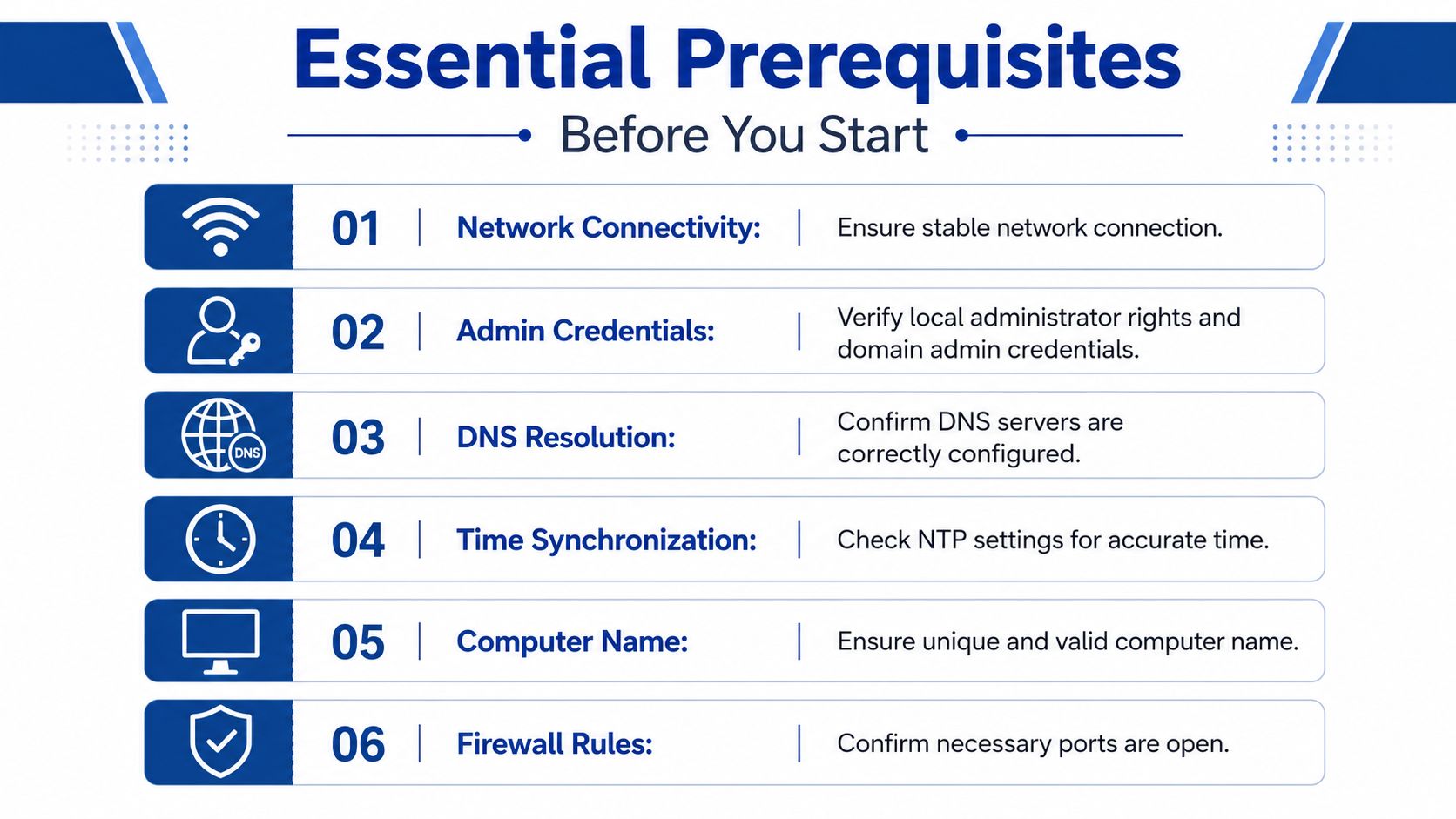
The most important prerequisite is DNS. The technical guidance is blunt: the client must point exclusively to the Domain Controller’s DNS server, and DNS-related failures account for over 90% of all domain join errors according to AdminDroid’s domain join guidance. If the computer is using the wrong DNS server, a public resolver, or stale records exist, the join can fail even when everything else looks fine.
The pre-flight checks that save hours
Before you touch the join screen, confirm these basics:
- Network path: The PC must be on the same reachable network path as the domain resources, whether that’s local LAN, VPN, or a routed office segment.
- Correct domain name: Use the full domain name, not a shorthand label someone remembers from memory.
- Admin rights: You need a local administrator session on the PC and credentials that are allowed to join the machine to the domain.
- Unique computer name: Rename the PC before joining if needed. Doing it later is possible, but it creates extra cleanup work.
- Time sync: If the machine’s clock is badly out of sync, authentication can become unreliable.
- Firewall sanity: Local firewall rules or edge security tools shouldn’t block communication with the services required for the join.
DNS details that people skip
The machine should use only the DNS service that knows your Active Directory environment. Mixed DNS settings are a common trap. If one server knows the domain and another doesn’t, Windows can appear to resolve some names correctly while still failing the join.
You also want the DNS suffix and hostname details to line up cleanly. If you’re troubleshooting a stubborn system, check for stale host records and reverse lookup mismatches instead of repeatedly trying the same credentials.
If the domain join wizard says the domain can’t be found, assume DNS first and permissions second.
For teams that also manage Linux identity services, it helps to understand how related directory integrations behave. This overview of SSSD topics on Steingard Financial is useful context when your environment spans more than Windows endpoints.
Know who is allowed to perform the join
Not every admin credential is equal. In smaller environments, people often use a highly privileged account for convenience. It works, but it isn’t always the best long-term habit. A delegated service account or designated join account is cleaner because it limits risk and makes actions easier to track.
If you’re joining several systems in one sitting, sort this access question before you begin. Nothing wastes time faster than a setup cart full of machines waiting on the same missing permission.
Joining a Computer via the Windows GUI
If you’re adding one computer, or you’re training someone who’s new to Active Directory, the Windows interface is still the easiest place to start. The path varies a bit by Windows version, but the logic stays the same. You’re changing the computer from a workgroup member to a domain member.

The click path that matters
On a Windows PC, open the system settings where you can change the computer name and domain membership. In many environments, that means opening System Properties, going to the Computer Name tab, and selecting Change.
From there:
Select Domain instead of Workgroup.
This tells Windows the machine should authenticate against Active Directory rather than stay standalone.Enter the full domain name.
Use the actual directory domain, not an informal company label.Provide authorized credentials when prompted.
These are the credentials that have permission to join the computer.Wait for the welcome message.
If everything is correct, Windows confirms that the machine has joined the domain.Restart the computer.
The restart isn’t ceremonial. It completes the membership change and refreshes how the machine handles sign-in and policy processing.
Why each field matters
The domain field is where many people get casual, and casual entries create avoidable failures. Windows needs the correct domain identity, not a nickname someone uses in conversation.
The credentials prompt often causes confusion too. You aren’t entering the new user’s everyday login just because they’ll use the PC later. You’re entering credentials for an account allowed to perform the join operation.
The safest workflow is simple. Rename the PC first, verify the network second, join the domain third, restart immediately.
If you want a visual walkthrough before doing it live, this video is a decent companion to the written steps:
When the GUI is the right choice
The GUI is best when:
- You’re joining a single machine: It’s fast and easy to confirm each step.
- You’re validating a new environment: It helps prove the basics before you automate.
- You’re training staff: Junior technicians can follow the prompts with less risk.
- You’re troubleshooting interactively: Seeing the exact error message in context can speed up diagnosis.
It’s not the best method when you’re deploying many computers, enforcing placement rules, or trying to standardize naming and OU assignment. That’s where PowerShell starts to earn its place.
Automating the Process with PowerShell
A single manual join is fine. Ten joins across new laptops for sales, accounting, and front desk staff is where manual work starts creating inconsistent names, missed reboots, and computers dropped into the wrong container.
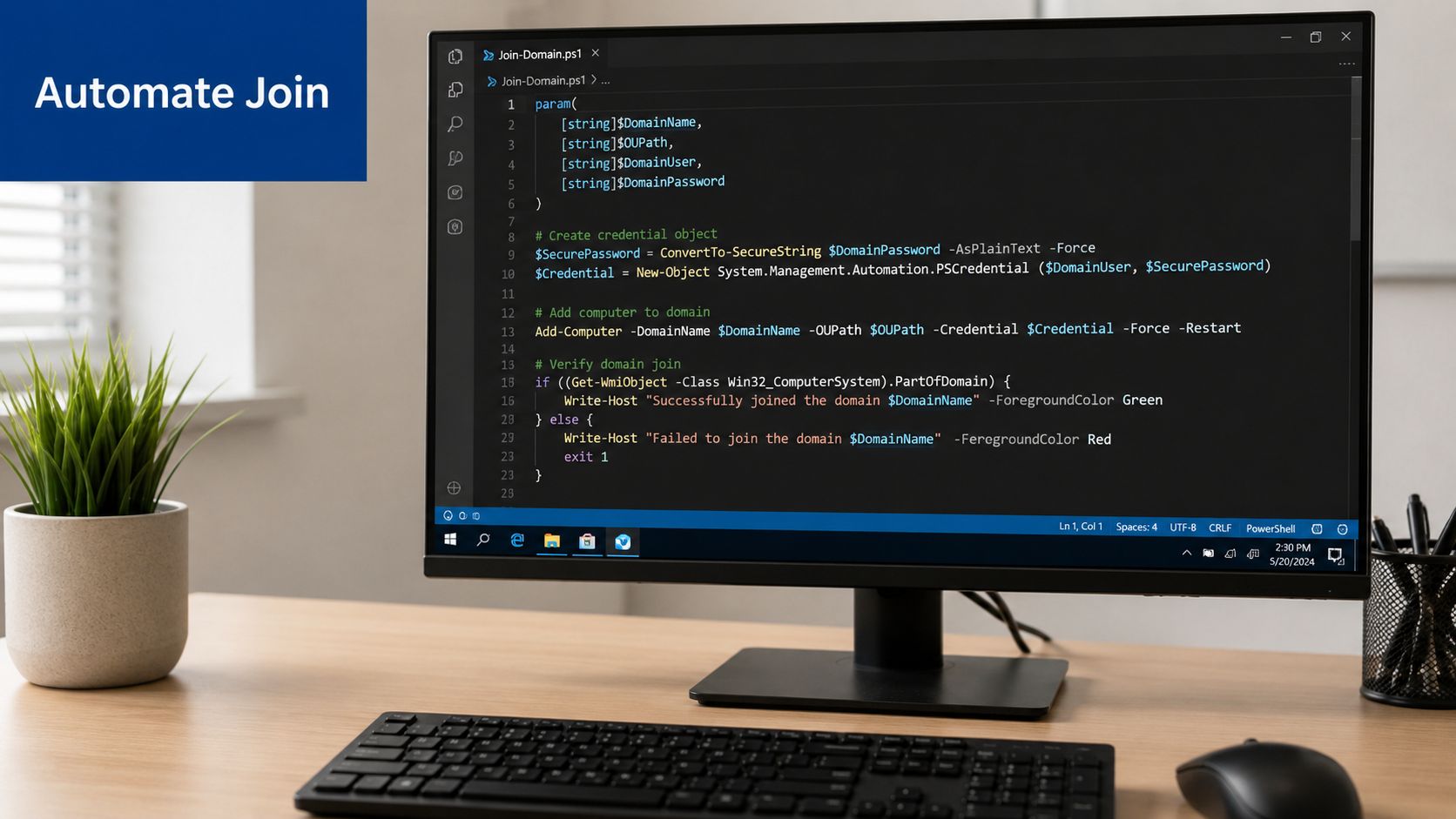
PowerShell fixes that by turning the join into a repeatable process. The built-in cmdlet is Add-Computer, and for a small business, that usually gives enough control without adding deployment tooling too early.
A practical example looks like this:
Add-Computer `
  -DomainName "yourcompany.local" `
  -OUPath "OU=Workstations,OU=Sales,DC=yourcompany,DC=local" `
  -Credential "YOURCOMPANYJoinAccount" `
  -Restart
Why PowerShell works better for repeat joins
The win is consistency.
A script lets you standardize the domain name, require the correct join account, and force the reboot as part of the same action. That lowers the chance of a technician skipping a step or joining a machine with the wrong settings. It also gives you a record of how the machine was joined, which helps later when you are auditing changes or troubleshooting a failed deployment.
These are the parameters that matter most:
-DomainNametells Windows which Active Directory domain to join.-Credentialsupplies an account with permission to join computers to the domain.-Restartreboots immediately so the join finishes cleanly.-OUPathputs the computer object in the correct Organizational Unit at the time of the join.
The parameter that saves cleanup later
Many step-by-step guides show a basic join command and stop there. In practice, -OUPath is the parameter that separates a tidy rollout from one that creates extra admin work.
If you skip it, the machine usually lands in the default container. That often means the wrong Group Policy scope, the wrong delegated admin boundary, or no department-specific settings during the first policy refresh. Small businesses feel this fast because one misplaced PC can miss mapped drives, printer deployment, security baselines, or line-of-business settings.
Put the computer in the right OU during the join. Moving it later is possible, but it adds cleanup work and increases the chance that the first user session starts with the wrong policies.
A practical way to use this in the real world
Use the GUI to prove the environment works. Use PowerShell once you want repeatable results.
That trade-off matters. If DNS is still being sorted out, or you are validating permissions in a new domain, the GUI can be easier for a one-off test because the prompts make errors visible in context. Once the basics are confirmed, scripting the join is the safer method for day-to-day deployments because it reduces variation between technicians and between offices.
For businesses that are still growing, this is also a good habit to build early. A simple scripted join today is easier to turn into a larger provisioning workflow later, whether that means imaging, Intune enrollment, or a move toward modern Azure AD join for some devices.
Verification and Post-Join Best Practices
A domain join is only half the job. The true measure is whether the PC lands in the right place, authenticates the way you expect, and picks up the settings that make it usable for staff on day one.
I see small businesses lose time here more than during the join itself. The machine restarts, everyone assumes it is done, and the first user logs on without the mapped drives, printers, or restrictions that should have applied. A two-minute verification routine prevents that.
How to confirm the join worked
Use several checks, not just the success message from the wizard.
Start by confirming the basics on the PC. Open System Properties and verify the machine shows the domain name instead of a workgroup. Then check the sign-in screen and make sure it offers domain authentication for the users who should sign in with Active Directory accounts.
After that, verify the result from the server side. In Active Directory Users and Computers, confirm the computer object exists and is in the correct OU, not just somewhere in the directory. If you sign in with a domain user, run whoami /fqdn to confirm the session is resolving to domain identity.
If your environment includes Linux systems or mixed authentication, it also helps to understand how Winbind handles domain integration in mixed networks. That context matters when a Windows join succeeds but access to shared services still behaves inconsistently.
What to do immediately after the join
Post-join discipline separates clean environments from ones that create support tickets later.
Use a short checklist every time:
| Task | Why it matters |
|---|---|
| Confirm the computer name | Consistent naming makes support, inventory, and remote access easier |
| Check OU placement | OU location controls policy scope and delegated admin rights |
Run gpupdate /force |
This applies Group Policy now, instead of waiting for the next refresh cycle |
| Test access to expected resources | The user should reach the file shares, printers, and apps tied to their role |
| Document the asset | Record who has it, where it sits, and what build standard it follows |
One more practical check belongs on that list. Test the network path the user will rely on every day. If the PC has unstable Wi-Fi, weak VPN connectivity, or inconsistent DNS reachability, fix that before handing it over. A good starting point is to troubleshoot internet connection problems if the machine shows any general connectivity issues after the join.
Scale changes the process
A one-off join can tolerate a little inconsistency. A batch rollout cannot.
A Spiceworks discussion on bulk join failures indicates that joining many machines in a short window can run into replication delays, which then surface as errors like “domain does not exist” on later attempts. The practical lesson is simple. Give Active Directory time to catch up, especially if you are creating or moving computer objects between sites or domain controllers.
For a small business, that usually means joining a few PCs first, confirming they appear in the right OU, forcing policy refresh, and testing a real user sign-in before continuing with the rest. That approach is slower on paper and faster in practice. It reduces rework, avoids policy surprises, and gives you confidence that the rollout will behave the same way on machine ten as it did on machine one.
Troubleshooting Common Domain Join Errors
Domain join errors often sound dramatic, but most of them point back to a short list of causes. The trick is to diagnose the layer that failed instead of retrying the same wizard over and over.
An Active Directory Domain Controller could not be contacted
This usually means the PC can’t properly locate or reach the domain services it needs. The root cause is often DNS, local network path issues, or a machine connected to the wrong Wi-Fi, VLAN, or VPN profile.
Start by checking basic connectivity and name resolution. If the machine also shows general network instability, a practical next step is this guide to troubleshoot internet connection problems, because unstable local connectivity can derail a domain join long before credentials are involved.
Access is denied
This error is more straightforward. The account you used doesn’t have the right to join the computer, or the existing computer object already has permissions or ownership issues.
Look at who is performing the join and whether the machine already exists in Active Directory. If it does, review whether the object should be reset, reused, or removed before trying again.
The specified domain either does not exist or could not be contacted
This message sounds like the domain is gone. Usually, it isn’t. More often, Windows can’t resolve the domain correctly, the suffix information is wrong, or the machine is talking to the wrong infrastructure.
Check the exact domain name you entered. Then review the client’s DNS settings and whether the PC is on the intended network path. If this happens during a larger rollout, slow down and verify the environment rather than treating it as a one-off typo.
When the issue is broader than Windows alone
Some environments blend Windows systems with Linux identity services, Samba components, or alternate authentication layers. In those cases, domain join troubleshooting can overlap with directory integration issues elsewhere. This collection of Winbind topics on Steingard Financial can help if your setup spans mixed platforms.
The best troubleshooting habit is simple. Read the exact error, tie it to the likely layer, and test that layer first. Domain joins are usually less mysterious than they look.
Looking Ahead On-Prem Domain vs Azure AD Join
A lot of small businesses join a new PC to the domain because that is how they have always done it. That can still be the right call. It just should be a deliberate one.
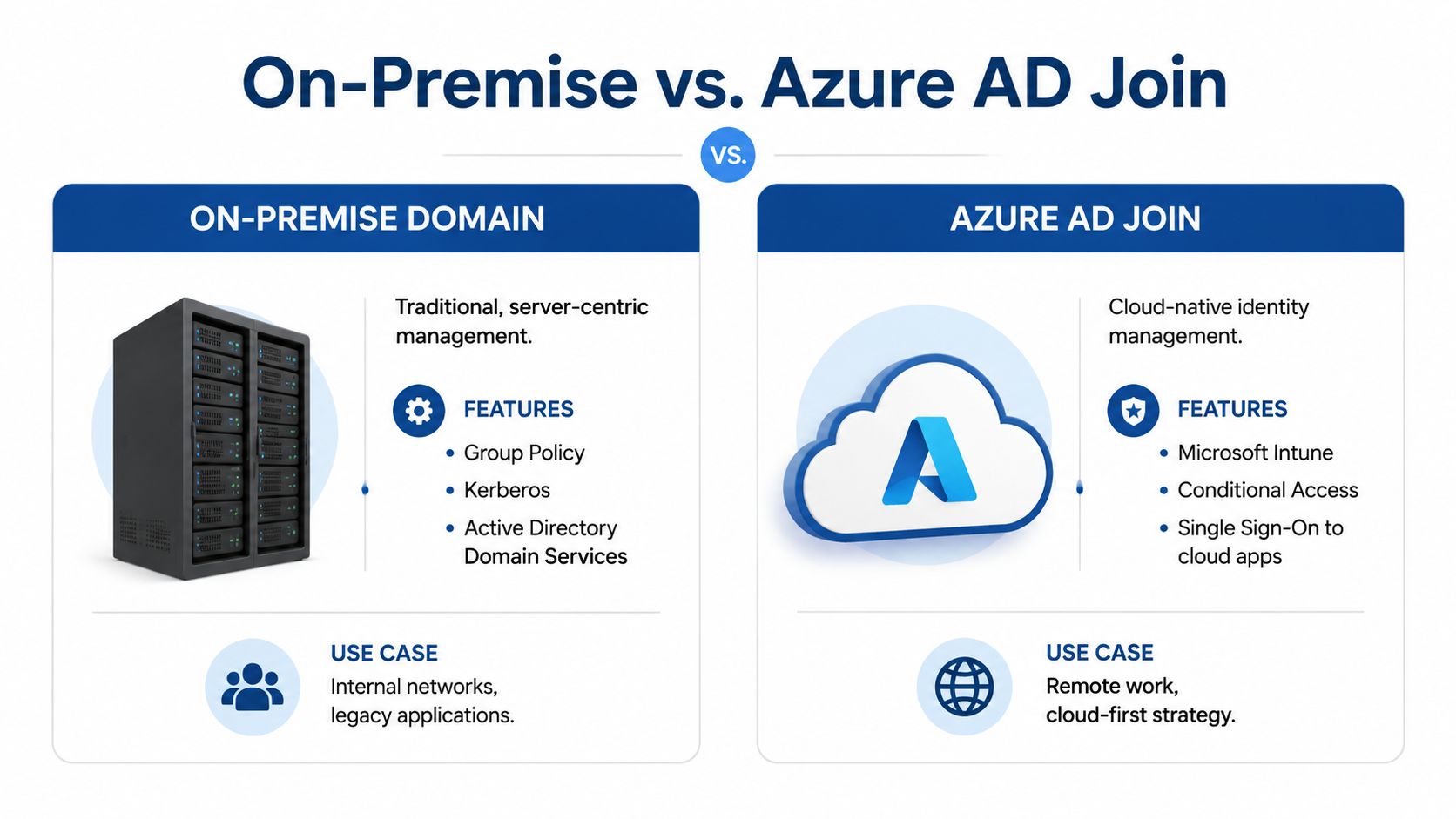
Traditional on-prem domain joins fit businesses that still depend on Active Directory Domain Services, Group Policy, internal file servers, print servers, or older line-of-business applications. Microsoft’s domain join guidance still reflects that reality. If your staff signs in at the office, reaches resources over the local network, and needs classic Windows management, on-prem remains the practical default.
Choosing the right model
The better question is not only, “Can this PC join the domain?” It is, “What identity system will make this machine easier to manage over the next three years?”
- On-prem domain join: Best for businesses with local servers, policy-heavy desktops, mapped drives, and applications that still expect a traditional AD environment.
- Azure AD Join or Microsoft Entra ID join: Better for cloud-first teams using Microsoft 365, Intune, and remote access more than office network resources.
- Hybrid join: A practical middle ground when some systems still live on-prem and others have already moved to cloud management.
I see small companies get into trouble when they keep using on-prem joins for laptops that rarely touch the office, or switch to cloud identity too quickly while a key accounting app still depends on the local domain. The join method should follow the workload, not the other way around.
What small businesses should watch
Cloud identity changes the management model. Instead of relying mainly on Group Policy and line-of-sight to a domain controller, you are shifting toward device compliance, conditional access, and identity security controls. If you are considering that path, this guide to Microsoft Entra ID security is a useful companion.
Directory choices also affect mixed environments. If your business has Linux systems, Samba services, or cross-platform authentication needs, the earlier discussion of Active Directory on Linux integration options adds useful context.
The long-term question isn’t just how to join this one PC. It is whether the join method you choose now matches how your business will operate next year, and whether your support model will stay simple as you grow.
If your business is growing and you want the financial side to scale with the same discipline as your IT systems, Steingard Financial helps service companies build cleaner operations with reliable bookkeeping, payroll, reporting, and people support.