 Skip to content

You’ve done the work. The client approved it. Now you need to send a bill, and the fastest option seems to be grabbing a free Excel template, typing in an amount, and emailing it off.
That usually works once. Then the bookkeeping problems start.
A basic spreadsheet bill might look professional enough to the client, but if it isn’t built with your records in mind, someone has to re-enter the same information into QuickBooks, match the payment later, and fix whatever naming, numbering, or tax issue slipped through. That’s where small invoicing shortcuts turn into month-end cleanup.
If you’re learning how to make a bill in excel, the smart move is to build one that does two jobs at the same time. It should help you get paid, and it should feed clean information into your bookkeeping process.
Beyond Templates The Need for a Smarter Excel Bill
Most business owners start with appearance. They want a bill that looks clean, has their logo, and gives the client a total due. That matters, but it’s only half the job.
The better question is this. What happens to this invoice after you send it? If the answer is “I save a copy somewhere and figure it out later,” the bill is already creating friction. A disconnected spreadsheet becomes a static file. It doesn’t help your accounts receivable process, it doesn’t support reporting, and it usually creates duplicate data entry.
What a generic template gets wrong
A generic template often misses the details that matter for bookkeeping:
- Inconsistent invoice numbers that are hard to trace later
- Loose service descriptions that don’t match the way income is categorized in QuickBooks
- Manual math that increases the chance of an avoidable error
- Missing payment terms that leave room for client confusion
- File names with no pattern so documents are hard to locate during reconciliation
Those aren’t design issues. They’re accounting issues.
Practical rule: If an invoice can’t be tracked cleanly from creation to payment to reconciliation, it isn’t finished.
A lot of owners also mix up “invoice template” with “invoice system.” They aren’t the same thing. A template is a document. A system is a repeatable process that supports billing, collections, and reporting.
If you’re still handling parts of your back office in spreadsheets, a structured small business accounts spreadsheet can help you think more clearly about what information should stay consistent across your books.
Build for the next step, not just the send button
Excel is still a practical tool for many service businesses. It’s flexible, familiar, and easy to customize. But it works best when you treat the bill as a data source, not just a form.
That matters even more if you expect to move toward automated electronic invoice processing later. A clean invoice structure in Excel makes that transition far easier because your fields, categories, and numbering logic are already in place.
A good bill doesn’t just look organized. It makes the rest of your bookkeeping easier.
Structuring Your Professional Invoice Layout
A client opens your invoice, wants to approve it in two minutes, and instead has to hunt for the invoice number, due date, and payment instructions. That delay usually shows up later in your books as a late payment, a follow-up email, or a deposit you cannot match cleanly in QuickBooks. The layout should prevent that.
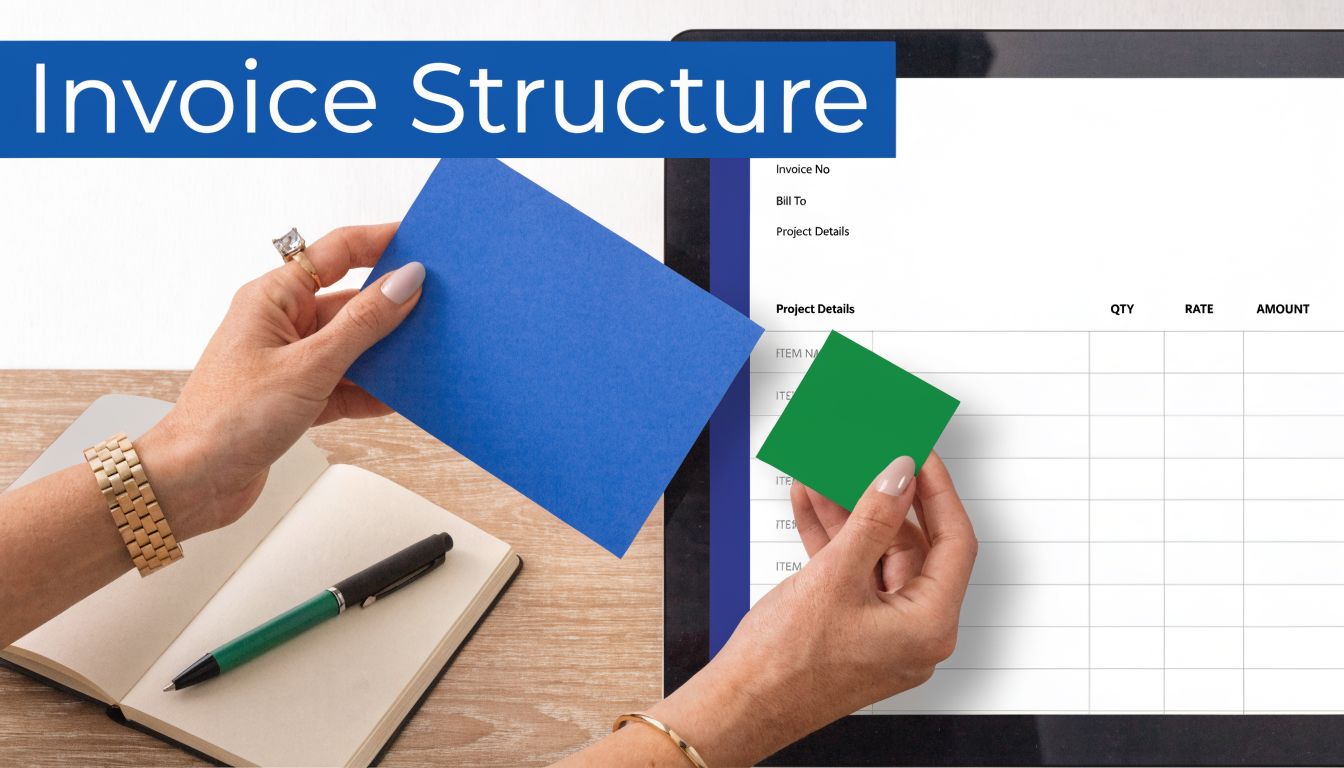
Start by giving the invoice a clear structure that matches how it will be reviewed, paid, and recorded. In Excel, I recommend four visible blocks on the page: your business details at the top, the client billing details underneath, the service and charge area in the center, and the totals and payment terms at the bottom right or bottom section. That order works well because it mirrors the information you or a bookkeeper will later enter into accounting software.
Set up the top of the invoice correctly
The top section identifies the transaction. If this information is incomplete, the rest of the invoice becomes harder to track.
Include:
- Legal business name exactly as it appears in your records
- Business address, email, and phone number
- Invoice number in a consistent format, such as INV-1024
- Invoice date
- Due date written clearly, such as “Payment Due December 31, [Year]”
- Client reference or purchase order number, if your client requires one
Use the same invoice number pattern every time. That is not just for appearance. Consistent numbering prevents duplicate invoices, makes unpaid balances easier to trace, and reduces import errors if you later move the bill into QuickBooks or another accounting system.
If you add a logo, keep it contained in its own area and do not let it crowd the invoice number or dates. A branded invoice helps credibility. Readability matters more.
Make the client section usable for bookkeeping
The client block should start with Bill To and include the company name, contact name, billing address, and email when relevant. Use the billing name the client uses in accounts payable. If your Excel invoice says “Acme Creative” but QuickBooks lists the customer as “Acme Creative LLC,” someone eventually has to stop and confirm whether those are the same record.
That matching issue causes more friction than many owners expect.
If you want a practical example of how teams streamline agency billing with Excel, notice how the cleaner layouts separate seller details, buyer details, and payment information into distinct blocks. That separation is useful because each block maps to a different part of your accounting process.
Keep the page in portrait orientation if the invoice is short. Remove gridlines before sending the final version. Use one font family and a restrained color scheme. Those choices make the invoice easier to scan, but they also reduce the chance that a client misses a date, total, or payment instruction.
Leave room for the fields that matter later
A workable invoice layout needs space for more than service lines. Reserve a clearly labeled area for the figures and terms that affect collections and reconciliation.
| Section | What belongs there |
|---|---|
| Subtotal | Total before tax or adjustments |
| Tax | Tax label and tax amount |
| Total Due | Final amount owed |
| Payment Terms | Due date, payment methods, remittance details, and late fee terms if you use them |
| Notes or Memo | Short project reference or billing period |
Keep these labels consistent from invoice to invoice. If one invoice says “Amount Due,” another says “Balance,” and a third says “Total,” imports and reviews get messier than they need to be.
Also leave enough vertical space for a realistic number of line items. If every detailed invoice forces you to resize sections or move totals manually, formula references are more likely to break and the final PDF is more likely to look inconsistent. A stable layout saves time and protects the accuracy of your records.
Put payment terms on the invoice itself. Do not rely on the email body to carry details your client may need when the bill is forwarded internally for approval.
Building the Core with an Itemized Services Table
The itemized services table is the part clients read most closely. It’s also the part most likely to cause disputes if it’s vague.
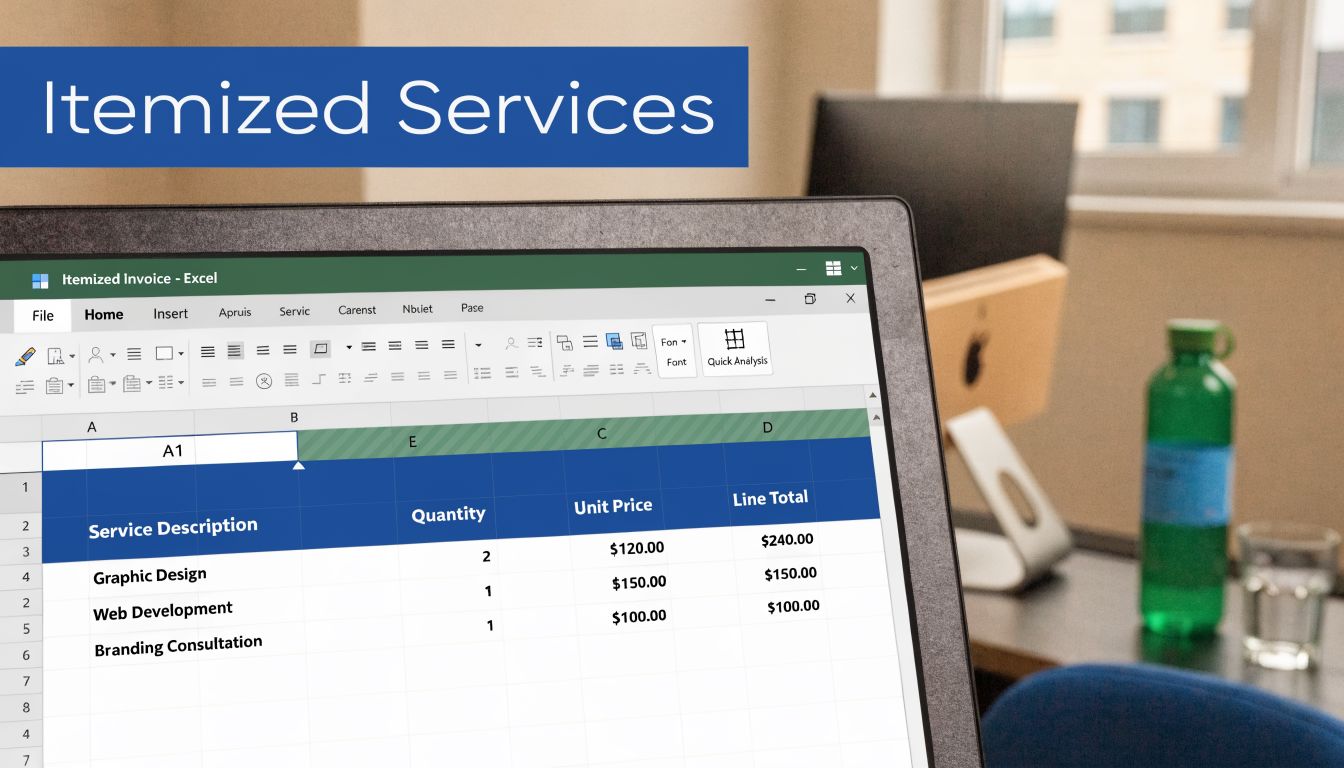
Don’t build this section by drawing borders around random cells and calling it done. In Excel, use Format as Table so the invoice data becomes a real structured table instead of loose formatting.
Use the right columns
For a service business, the minimum useful columns are:
- Service Description
- Quantity or Hours
- Unit Price
- Line Total
That structure gives the client enough detail to understand the charge and gives you enough consistency to track revenue categories later.
A weak service description says “Monthly work.” A better one says “BookkeBookkeeping servicesovember” or “Project management hours for website migration.” The second version is easier for the client to approve and easier for you to map into your accounting records.
Why Excel Tables are worth using
A formal Excel Table does more than make the sheet look neat. It improves how the invoice behaves.
Here’s what works better with a table:
- New rows inherit formatting automatically
- Formulas copy down without manual dragging
- Column names are clearer when writing formulas
- Sorting and filtering are easier if you review invoice data later
That last point matters more than people expect. Once you’ve created several invoices, a structured table makes it easier to inspect recurring service names, check rates, or spot inconsistencies before sending the file.
The item list should explain the charge without needing a follow-up email.
Keep descriptions consistent with your books
There’s a trade-off here. You want enough detail for the client, but you also want consistency from invoice to invoice. If one month you bill “Advisory work,” the next month “Consulting,” and the month after “Strategy support,” you create a categorization problem for yourself even if the client doesn’t care.
A practical compromise is to use a standard service label first, then add the specific period or project. For example:
- Consulting Services, Q4 planning session
- Project Management, implementation support
- Payroll Administration, semi-monthly processing
That naming style helps later if you import, summarize, or match invoice data against reports.
Automating Calculations with Smart Formulas
A bill can look polished and still create bookkeeping problems if the math is fragile. I see this often with first-time Excel invoices. One overwritten formula, one rounded figure entered by hand, or one tax rate typed into the wrong cell is enough to create a client dispute or a mismatch when the invoice is entered into QuickBooks.
Start with the line total formula
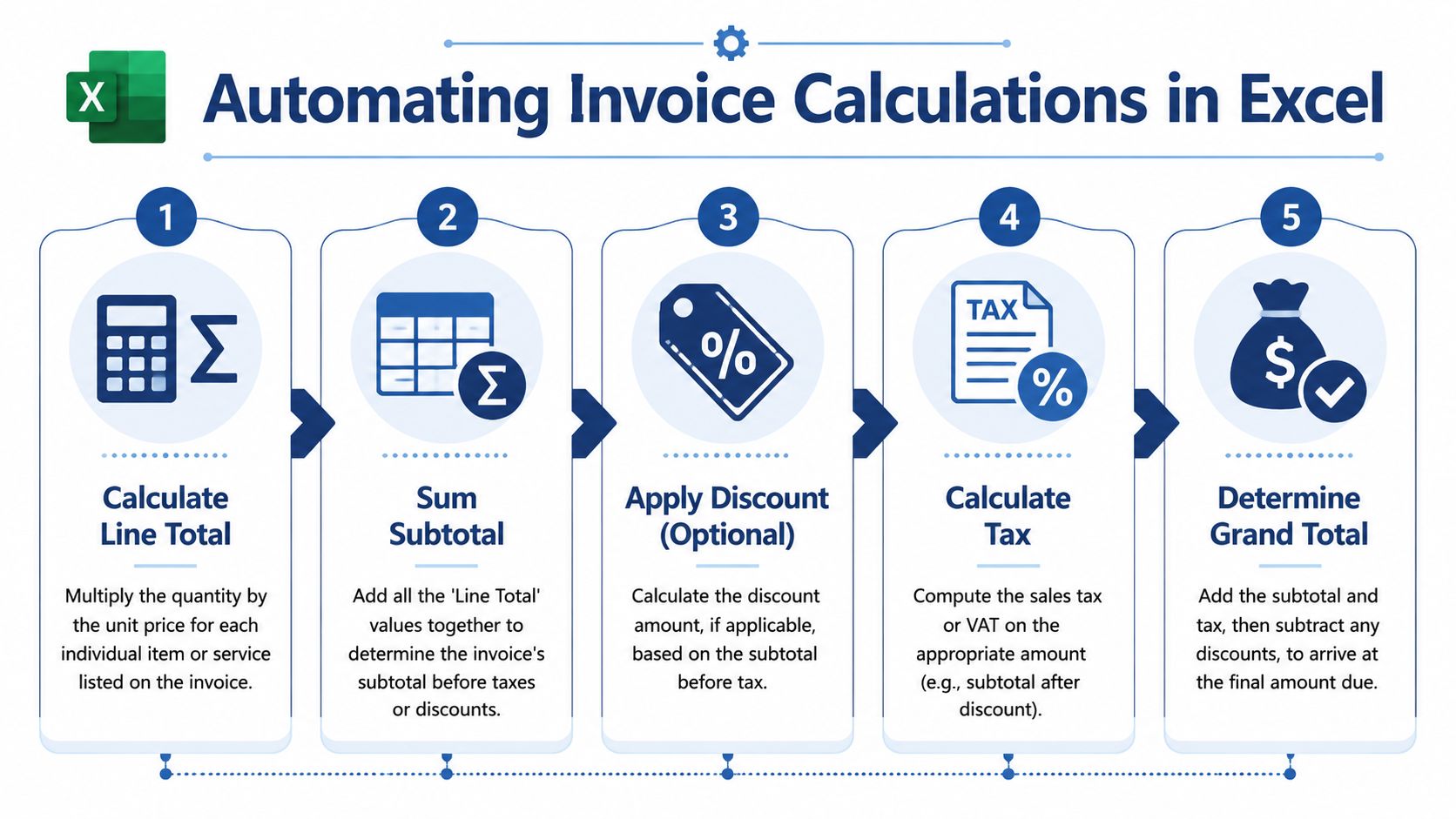
The first formula that matters is the line total in your item table. If you built the item section as an Excel Table, enter this once in the Line Total column:
=[@Quantity]*[@UnitPrice]
Excel fills the rest of that column for you. That saves time, but the bigger benefit is consistency. Every row follows the same calculation logic, which makes review easier if you need to trace an amount back to hours, units, or rate.
If you bill by hours, substitute Hours for Quantity. The formula structure stays the same.
Calculate the summary section from the table, not from typed numbers
Below the item table, keep the summary block simple:
- Subtotal
- Tax
- Total Due
For the subtotal, sum the Line Total column rather than selecting a loose range each time. If your table is named InvoiceItems, a formula like this is easier to maintain:
=SUM(InvoiceItems[Line Total])
That approach matters once you add or remove rows. A fixed cell range can miss new items. A table reference updates with the table.
Tax deserves its own setup. Put the tax rate in a dedicated cell outside the main invoice body, then reference that cell in the formula. Do not hard-code 0.07 or 8.25% into several places. If the rate changes, or if you have one client who is non-taxable, you want one field to update, not a scavenger hunt through the sheet.
A practical layout looks like this:
| Field | Formula approach |
|---|---|
| Subtotal | =SUM(InvoiceItems[Line Total]) |
| Tax | =SubtotalCell*TaxRateCell |
| Total Due | =SubtotalCell+TaxCell |
Use controls that protect the numbers
Good invoice formulas are only half the job. The other half is preventing accidental edits.
Lock the formula cells. Leave only the input fields open, such as service date, description, quantity, and rate. Then protect the worksheet. This is a simple control, but it prevents one of the most common mistakes on Excel invoices. Someone clicks into Total Due, types a correction, and breaks the formula without noticing.
Conditional formatting also helps if you use it sparingly. Highlight blank client names, missing invoice numbers, or zero-value line items that should be reviewed before sending. I would not turn the sheet into a warning light display. A few clear flags are enough.
A bill that looks professional but calculates incorrectly creates more cleanup work than a plain bill with dependable formulas.
Add a few formula habits that help later in bookkeeping
Named ranges make the file easier to maintain. If your tax rate cell is named TaxRate, the formula is easier to read and harder to misinterpret later.
Rounding is another detail worth handling early. If your business bills fractional hours or applies sales tax, use consistent rounding rules so the invoice total matches what gets recorded in your books. Small differences are annoying on the client side and even more annoying during reconciliation.
If you plan to move invoice data into QuickBooks regularly, keep the formulas predictable and the field names stable. The cleaner your setup here, the less correction work you face when entering or importing invoices later. If you need help matching your Excel billing process to your accounting file, this guide on how to set up QuickBooks Online properly will save you time.
If you want to improve your formula skills beyond the basics, these advanced excel training resources are useful.
Preparing Your Bill for Bookkeeping and QuickBooks
A service business can send a clean-looking invoice on Friday and still create a bookkeeping mess on Monday. I see that happen when the bill goes out with inconsistent customer names, vague service descriptions, or an invoice number that does not match the accounting file. The client may pay it without issue, but the back office still has to figure out where that income belongs and whether the payment was applied correctly.
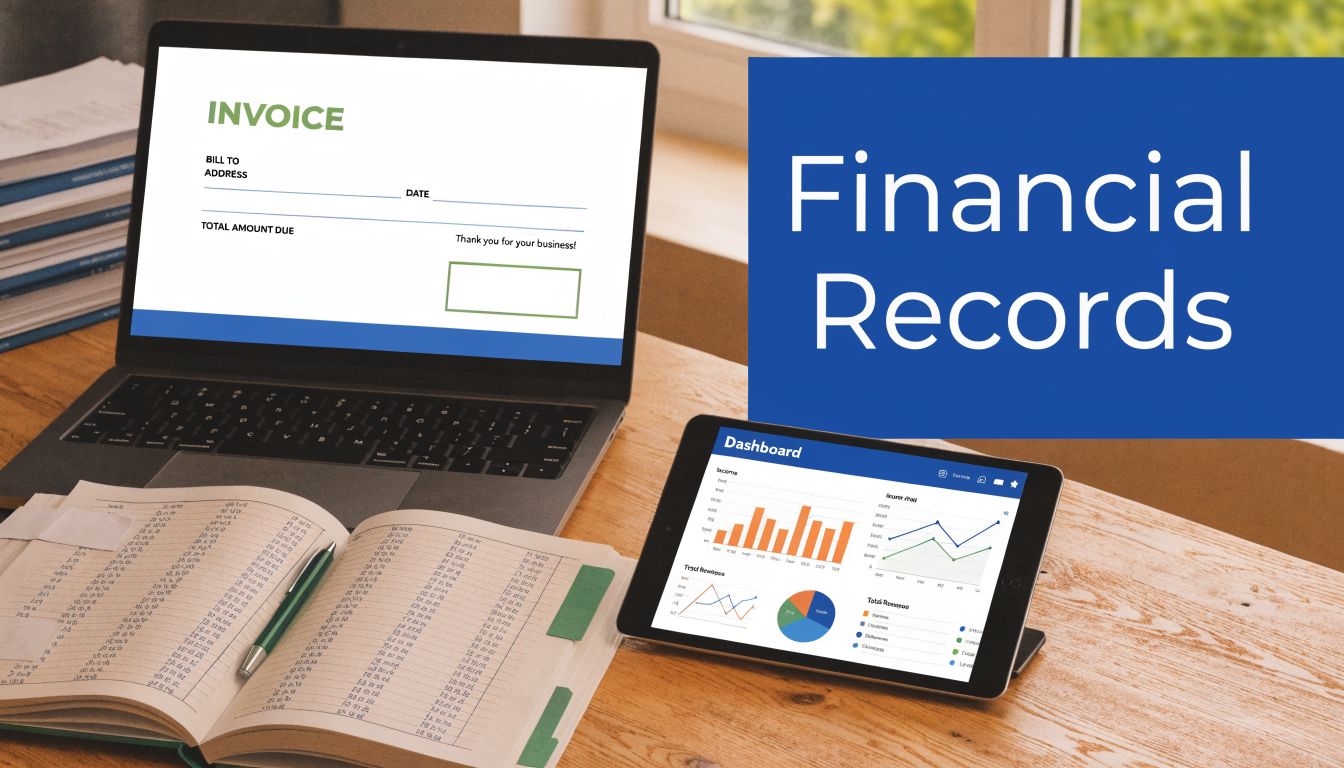
Your Excel bill should be built to post cleanly into your books. If it is disconnected from your accounting process, month-end close takes longer, accounts receivable reports become less reliable, and tracing old invoices turns into a manual search.
Build the invoice around bookkeeping fields
Every field should answer a bookkeeping question.
The invoice number should be unique and sequential. The client name should match the customer record you use in your accounting system. Service descriptions should line up with the income categories, products, or service items you plan to use once the invoice is entered in QuickBooks.
That last point saves a lot of cleanup. If your books use “Consulting Services” as an income item, keep that wording consistent on your invoices. Switching between “Consulting,” “Advisory,” and “Business Support” for the same work makes coding less reliable, especially if more than one person handles billing or data entry.
Name and save the file so it can be found later
File names matter more than many owners expect. During collections, a client dispute, or a year-end review, you want to find the invoice in seconds.
A practical format is:
- Invoice number
- Client name
- Invoice date in a consistent format
For example, INV-1048_Acme-Design_2026-05-13.pdf is easier to sort and search than May invoice final revised.pdf. The goal is not prettier file storage. It is faster retrieval and fewer mistakes when matching documents to transactions.
Match Excel to QuickBooks before problems start
If you plan to record invoices in QuickBooks Online, keep your Excel template close to that structure from the beginning. Use stable customer names, stable service labels, and a consistent tax treatment. That reduces recoding work and helps prevent duplicate customer records or misclassified income.
If your accounting system is still being organized, this guide to setting up QuickBooks Online properly will help you align invoice fields with your chart of accounts and customer setup.
A good invoice does more than ask for payment. It supports accounts receivable, payment matching, revenue reporting, and audit support with less correction work later.
That matters even more if you track revenue by department, project, or service line. Small wording choices on the invoice can create real reporting errors once the numbers hit your books.
Common Invoicing Questions for Service Businesses
A solid invoice template answers most questions before the client asks them. A few practical questions still come up all the time.
How should I number my invoices
Use a sequence and stick to it. The most important rule is consistency.
Some businesses prefer simple numbering, while others use a year or client prefix for internal organization. What matters is that each invoice number is unique, traceable, and easy to search. Don’t recycle old numbers, and don’t create gaps unless you can explain them.
Should I send the Excel file or a PDF
Send the invoice as a PDF. Keep the Excel workbook as your internal master template.
PDF prevents accidental edits, preserves formatting, and presents a cleaner document to the client. The spreadsheet should stay on your side so you can reuse formulas, update fields, and maintain version control.
How do I show a deposit or partial payment
Add a clearly labeled line in the totals area for the amount already paid, then show the remaining balance due. Don’t bury a deposit inside a vague adjustment line.
Use labels the client can understand immediately, such as:
- Deposit Paid
- Amount Received
- Balance Due
That makes the payment history visible and reduces back-and-forth over what remains outstanding.
If you’re ever unsure whether to issue an invoice or a receipt, this guide on the difference between a receipt and invoice helps clarify when each document belongs in your process.
The main point is simple. Your invoice should be clear enough that the client knows what they owe, your bookkeeper knows how to record it, and your future self can locate it without guessing.
If your invoicing process still lives in scattered spreadsheets, copied templates, and manual cleanup, Steingard Financial can help you build a billing workflow that supports accurate books, cleaner QuickBooks reporting, and less month-end stress.