 Skip to content
You export a spreadsheet from your bank, payroll system, or point-of-sale tool. You clean up the columns, remove a few odd rows, and upload it into QuickBooks or Gusto. Then the software throws back a vague error. No clear cause. No useful direction. Just a stalled task sitting in the middle of your day.
That moment feels technical, but the underlying issue is operational. Your books don’t get updated. Payroll timing starts to feel tighter. You lose confidence in whether the file is wrong, the software is picky, or something broke in the handoff between systems. A file validation utility solves that exact problem. It checks a file before it reaches your accounting or payroll system, so bad data gets caught early instead of becoming a bookkeeping cleanup project later.
The Frustrating Reality of Bad Data Imports
A common scene looks like this. You download a month of transactions from one system, map the columns in a spreadsheet, and import the file into QuickBooks. The upload fails. The message might say the date is invalid, a required field is missing, or the file can’t be processed. Sometimes it doesn’t even tell you that much.
The frustrating part isn’t just the failed import. It’s the guessing. You start checking the date column. Then the amount column. Then whether an account name matches exactly. You try again, get another rejection, and now a routine bookkeeping task has eaten a chunk of your afternoon.
That cycle creates two costs at once:
- Time lost to trial and error: You stop doing actual review work and start hunting for invisible formatting mistakes.
- Confidence lost in your records: If the import finally goes through after several edits, you may still wonder what changed and whether other issues slipped in.
- Cleanup work that shows up later: Errors missed during import often reappear during reconciliation, payroll review, or month-end close.
Bad imports rarely mean you’re careless. They usually mean the process lacks a reliable checkpoint before data enters the system.
Many business owners often get stuck. They assume the answer is to be more careful with spreadsheets. Sometimes that’s part of it, but the deeper fix is adding a gatekeeper between the file and the software. Before anything touches your books, the file should be checked against the rules that QuickBooks or Gusto expects.
If you’ve ever had to reverse duplicate entries, fix broken mappings, or sort through historical import problems, that’s often a sign your workflow needs validation, not just cleanup. For businesses already dealing with messy records, bookkeeping cleanup support can help untangle the past. Going forward, validation helps stop the same mess from being recreated.
What Is a File Validation Utility
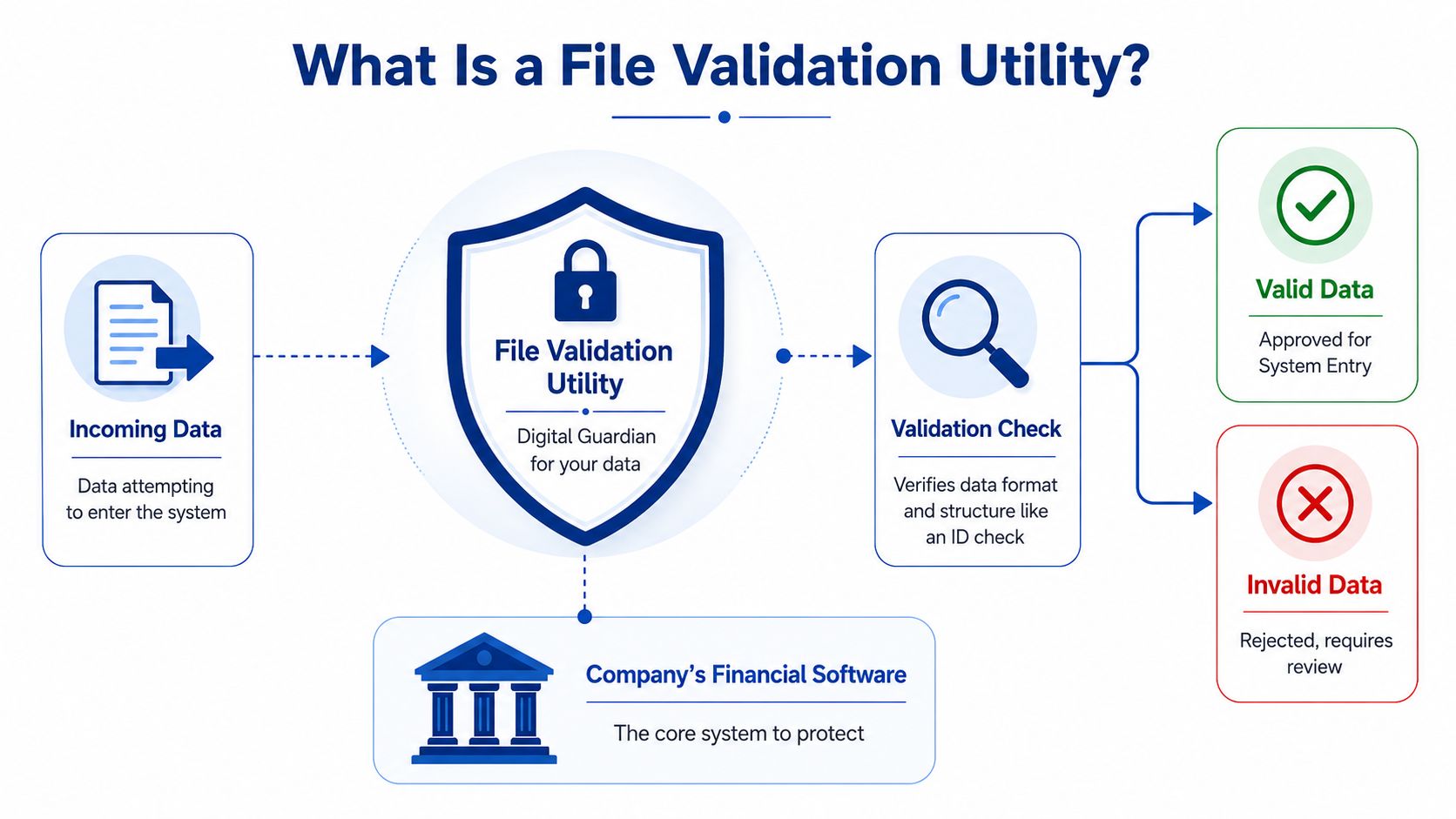
A file validation utility is a tool that checks whether a file is structured correctly before software tries to import or process it. If the file passes, it moves forward. If it fails, the utility tells you what needs attention.
The easiest way to think about it is a front-door check.
Think of it as a bouncer for your data
Your financial software is the club. Your CSV, spreadsheet export, or payroll upload is the person trying to get in. The file validation utility is the bouncer checking identification at the door.
It asks simple but important questions:
- Is this the right file type
- Does it contain the fields this system requires
- Are the values in the correct format
- Are key entries blank, broken, or obviously wrong
If the answers line up with the rules, the file gets through. If not, the tool blocks it before it can cause trouble in QuickBooks or Gusto.
That sounds technical, but the business value is simple. You spend less time importing, undoing, and correcting. You also get cleaner data feeding the reports you rely on.
What it checks before import
Most validation tools work from a predefined set of rules. For accounting and payroll files, those rules often include:
- Column structure: The file has the expected headers, such as Date, Description, Amount, Employee ID, or Department.
- Data type: A date field contains dates. An amount field contains numbers. A text field doesn’t contain formulas or stray symbols.
- Required fields: Anything the software needs to process the row can’t be blank.
- Consistency: The same kind of information is entered the same way across the file.
A practical example helps. Say you’re uploading transactions into QuickBooks. You may have a row where the amount includes a currency symbol, another where the date uses a different format, and another with a blank account field. A file validation utility flags those rows before import instead of letting QuickBooks choke on them halfway through.
A lot of business owners first run into validation through spreadsheet tools or basic developer utilities. If you want a simple outside example of how rule-checking works with structured files, this guide to compare top JSON validator online gives a useful parallel. The file type is different, but the idea is the same. Check the structure first, then trust the output.
Here’s a quick visual walkthrough of the concept in action:
Practical rule: Validation doesn’t replace bookkeeping judgment. It handles the mechanical checks so you can focus on whether the transaction or payroll entry makes business sense.
The Main Types of Data Validation Checks
Not all validation checks do the same job. Some confirm that a file is the right kind of file. Others inspect the contents row by row. The easiest way to understand them is to see each type as a different checkpoint.
Format validation
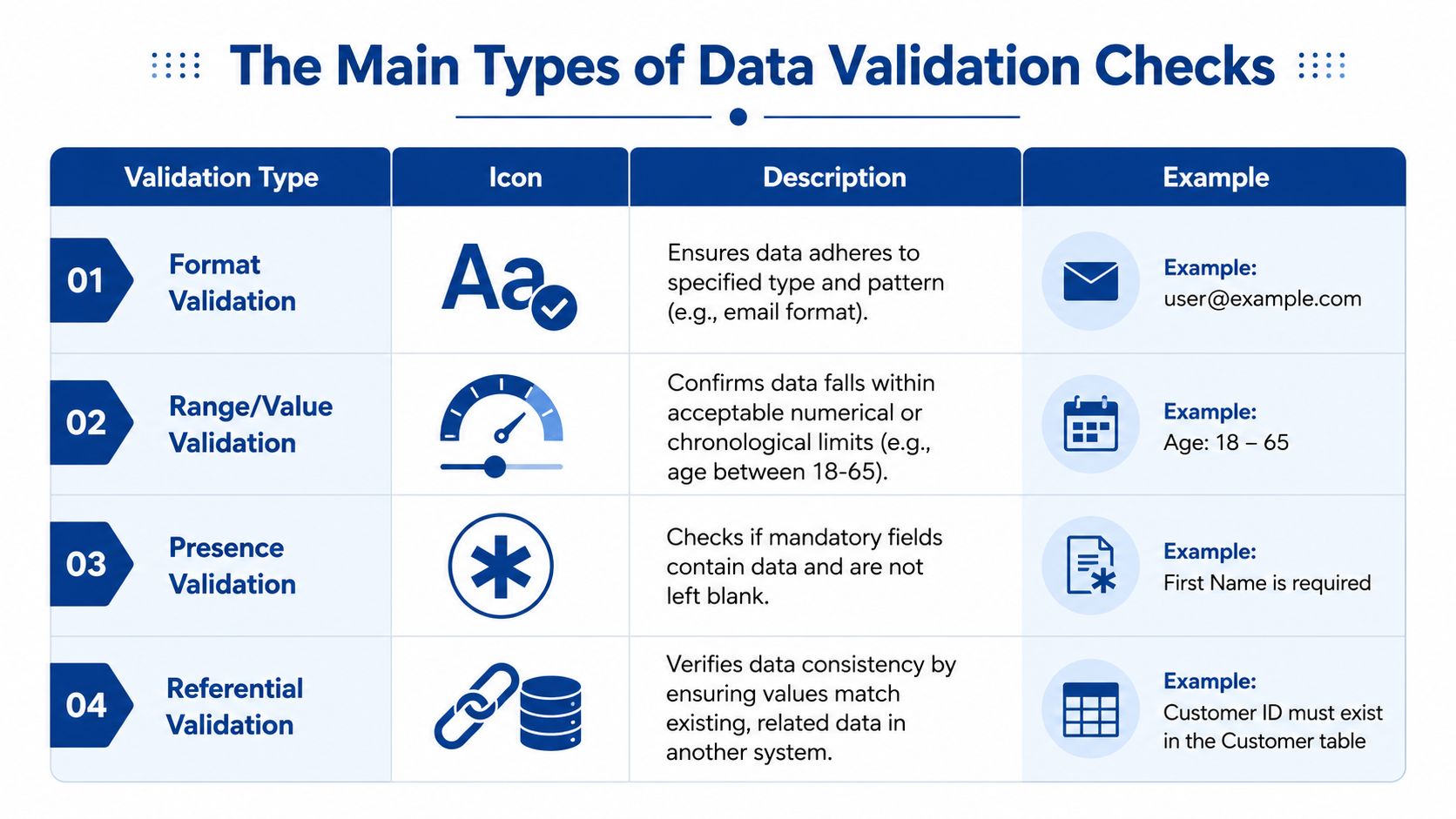
Format validation is the first screen. It checks whether the file looks like what the receiving system expects.
If a platform wants a CSV, format validation checks whether the file is a usable CSV and not a spreadsheet saved in a misleading way. It can also look at patterns inside the file. Dates should look like dates. Email fields should look like email addresses. Numeric columns should contain numbers, not notes typed in by hand.
This is the basic pass-or-fail layer. Without it, the software may reject the entire upload before looking at the details.
A few common format issues show up again and again:
- Date mismatches: One row uses month/day/year while another uses day/month/year.
- Numbers stored as text: Amounts include commas, symbols, or spaces that the importer can’t interpret.
- Broken delimiters: Columns shift because a comma inside a description field wasn’t handled correctly.
- Unexpected characters: Hidden symbols from copied data make an otherwise normal field fail.
Schema validation
Schema validation is where the file validation utility becomes especially valuable for bookkeeping and payroll. This check compares your file against the required structure. Not just the file type, but the exact blueprint.
That means questions like these get answered:
| Check | What it asks | Why it matters |
|---|---|---|
| Column check | Are all required headers present | Missing headers stop imports or misplace data |
| Order check | Are columns in the expected sequence | Some systems map by position, not just by name |
| Field type check | Does each column contain the right kind of value | Prevents dates, text, and amounts from landing in the wrong places |
| Rule check | Does the value follow business rules | Stops entries that technically fit the format but still violate process rules |
For financial imports, schema validation has a direct payoff. Businesses that implement schema validation for their financial data imports reduce data-entry-related bookkeeping errors by an average of 90%, according to a 2025 analysis by the Digital Accounting Institute (Digital Accounting Institute analysis).
That matters because schema problems are the ones most likely to create silent damage. A file can upload and still place information in the wrong field, especially when column names are close but not identical.
If your team is also tightening reconciliation workflows, tools and processes for automated reconciliation software become much more effective when imported data is already validated at the file level.
Checksum and integrity checks
Checksum validation is less visible to most business owners, but it’s still useful. It helps confirm that the file wasn’t altered or corrupted while being transferred between systems.
You won’t usually look at a checksum value yourself. The software handles that in the background. But the purpose is easy to understand. It answers a simple question: is this the same file that was created, or did something break in transit?
A file can be complete, properly named, and still be damaged enough to fail when the system reads it.
Other checks you may see in practice
Some platforms or import tools also use more business-specific checks:
- Presence validation: Required fields can’t be blank.
- Range validation: Amounts, hours, or dates must fall inside acceptable limits.
- Referential validation: A value must match something that already exists, such as an employee ID, customer name, or chart-of-accounts entry.
These extra layers matter because a file can pass basic formatting and still contain entries that don’t belong in your actual workflow.
Validation in Your Daily Bookkeeping and Payroll
Most business owners don’t care about validation in the abstract. They care when it saves them from a bad QuickBooks import or a payroll mistake. That’s where the concept becomes practical.
A QuickBooks import that goes sideways
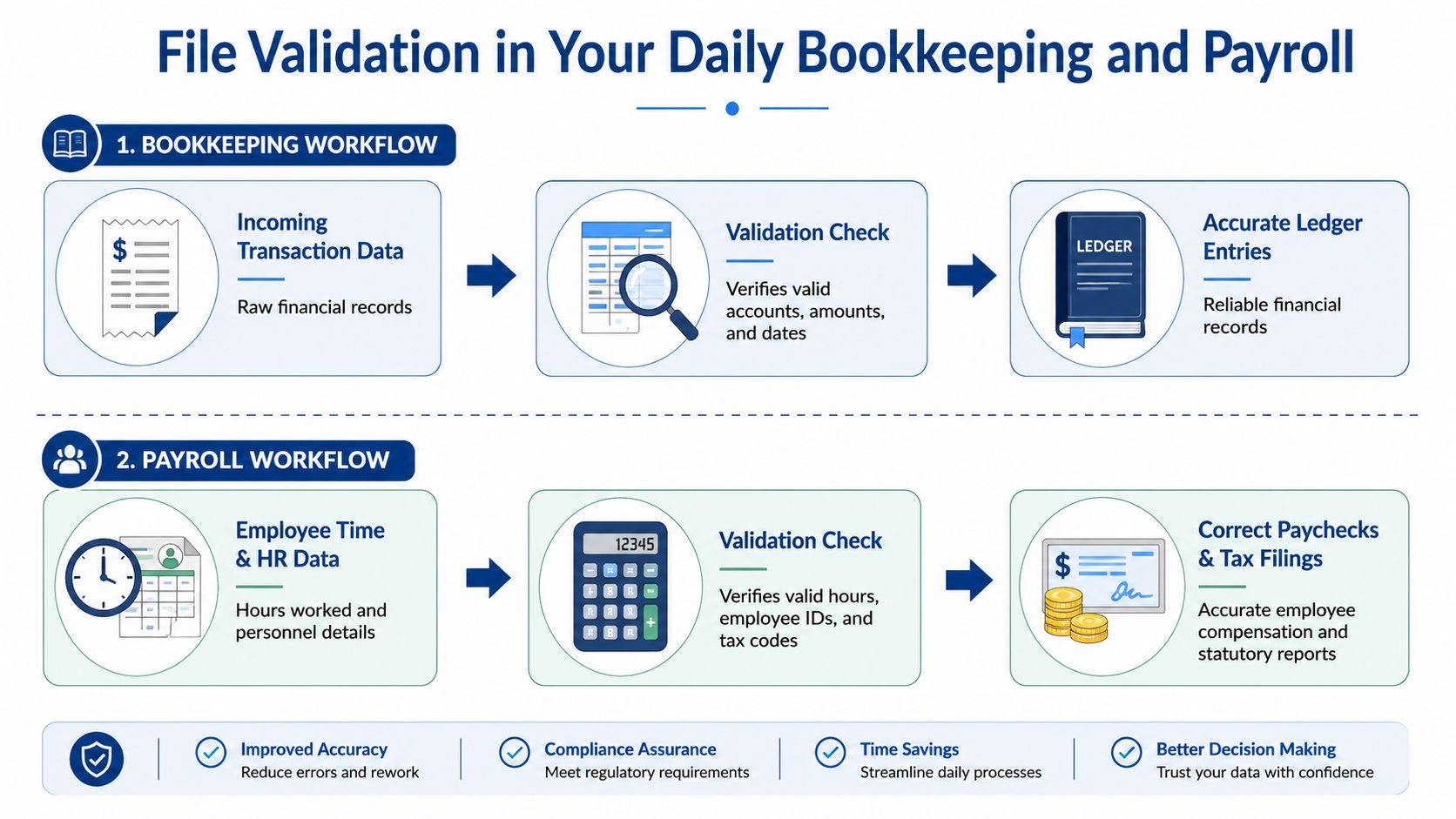
Say you export transactions from another platform and prepare a CSV for QuickBooks. The file looks fine in Excel or Google Sheets. Every row has a date, a description, and an amount. You upload it anyway, and the import fails.
A file validation utility would catch several common problems before that upload:
- The date column mixes formats: Some entries read as one style, others as another.
- The amount column contains text: A note like “pending” appears in a field that should contain only numbers.
- Account names don’t match your chart of accounts: The file refers to an account label that doesn’t exist in QuickBooks.
- Blank required fields appear midway through the file: One missing value can derail the process.
Without validation, you usually find these issues after the failed import. With validation, you get a cleaner list of what needs fixing in the source file.
That changes the workflow in a useful way. Instead of trying random edits, you correct the file once, based on specific issues. Then you import with a lot more confidence.
A Gusto payroll upload that needs guardrails
Payroll files create a different kind of stress because the errors affect people directly. If you’re uploading a bonus file or adjusting payroll data in Gusto, the stakes feel higher. You don’t want the wrong employee ID, bad amount formatting, or misaligned field names creating paycheck problems.
A validation step can catch issues such as:
- Employee identifiers in the wrong format
- Bonus or reimbursement fields entered as text instead of numbers
- Rows missing required employee information
- Codes or labels that don’t match what the payroll system accepts
The cost of skipping this check isn’t only administrative. It can lead to reruns, corrections, and awkward conversations with employees who expected one result and got another.
For firms that exchange payroll spreadsheets, onboarding forms, or employee change files with outside partners, secure transfer matters too. This guide on protecting client data with secure sharing is useful because validation and secure delivery work best together. One protects file quality. The other protects the file itself.
If a payroll file feels too sensitive to “just upload and see what happens,” that’s a sign validation should be part of the process.
Why this matters to your bottom line
The value isn’t just fewer software errors. The value is fewer interruptions to the core finance rhythm of the business.
When bookkeeping imports work cleanly:
- Reconciliations move faster
- Reports are easier to trust
- Month-end closes involve fewer surprises
When payroll uploads are validated first:
- Runs feel less rushed
- Corrections are less likely
- Your team spends less time on follow-up questions
If you’re using Gusto and need a cleaner payroll foundation, setting up QuickBooks payroll processes can also help clarify how data should flow between systems and where validation checks belong.
Best Practices for Using and Handling Validation
A file validation utility works best when it’s part of a routine, not a rescue tool you remember only after an import fails. Good habits keep the process simple.
Start with the software’s template
QuickBooks, Gusto, and other finance tools often provide sample import files or guided field maps. Use those. They reflect the structure the platform expects, which means you’re less likely to build the file around your spreadsheet preferences instead of the software’s rules.
The fastest path usually isn’t creating a file from scratch. It’s taking the platform’s template and filling it carefully.

Read the error message like an instruction
Many people see validation errors as technical noise. They aren’t. A useful error message is a to-do list.
Compare these two experiences:
- Unhelpful message: Import failed
- Useful message: Row 52 contains a non-numeric value in the Amount field
The second message tells you where to look and what to fix. That’s why it’s worth choosing tools and workflows that provide row-level feedback when possible.
When you review validation errors, focus on three things:
- The row number so you know exactly where the problem sits.
- The field name so you don’t edit the wrong column.
- The rule being violated so you fix the root issue, not just the symptom.
“Row-specific errors save time because they let you repair the source file instead of guessing inside the import screen.”
Test small before importing big
When you’re working with a new format, a new vendor export, or a new mapping setup, don’t start with the full file. Run a small test import first.
That gives you a safe way to confirm:
- Headers are mapped correctly
- Required fields are present
- Dates and amounts are interpreted the way you expect
- The target system places entries in the right accounts or payroll buckets
Once the small file behaves correctly, move to the larger batch. This one habit prevents a lot of avoidable cleanup.
Keep source files clean and consistent
Validation is easier when your source files are orderly before they ever reach the utility.
Useful habits include:
- Locking column names: Don’t let team members rename headers casually.
- Avoiding mixed data in one field: A column should hold one kind of information only.
- Saving original exports separately: Keep a clean copy before making edits.
- Standardizing ownership: One person or one team should be responsible for final import prep.
If your file preparation process depends on tribal knowledge, it will break when someone is out or a handoff gets rushed.
Know when to get help
Some validation issues are one-off fixes. Others point to a design problem in the workflow. If the same import keeps failing, the answer may not be another spreadsheet correction. It may be a mapping issue, a chart-of-accounts issue, or a broken process between systems.
That’s where outside bookkeeping or payroll support can make the process repeatable instead of fragile.
Move from Fixing Data to Trusting Data
The actual advantage isn’t that a file validation utility catches bad rows. It’s that you stop spending your time cleaning up preventable mistakes.
When data gets checked before it enters QuickBooks or Gusto, your systems become calmer. Imports go through with fewer surprises. Payroll runs with less manual second-guessing. Reports feel more dependable because the information entering the system had to meet clear rules first.
That shift matters for service businesses. You already have enough moving parts in scheduling, billing, payroll, and client work. Your financial tools should support decisions, not create detective work. Validation helps turn spreadsheets and uploads from a weak point into a controlled step in the process.
A good bookkeeping system isn’t built on perfect people. It’s built on reliable checks. The better those checks are, the less your team has to rely on memory, guesswork, and last-minute fixes. That’s how you move from reacting to data problems to trusting the numbers you’re using to run the business.
If you want help building cleaner bookkeeping and payroll workflows around QuickBooks and Gusto, Steingard Financial helps service businesses create accurate, dependable back-office systems that reduce errors before they reach your books.